Guide
SVG vs PNG for barcode printing
Choose vector or raster export with explicit size, scaling and workflow controls instead of assuming a file format guarantees print quality.
On this page
Direct answer
SVG is usually the safer editing and scaling format for barcode artwork because it describes vector shapes. PNG is a raster image with a fixed pixel grid and can be appropriate when the target workflow requires exact pixel dimensions and prevents resampling. Neither format guarantees a compliant physical barcode.
Choose the format that the downstream layout and print system handles predictably. Lock intended physical dimensions, preserve quiet zones, avoid non-integer or unreviewed scaling and test the final printed output rather than only the exported file.
What SVG preserves
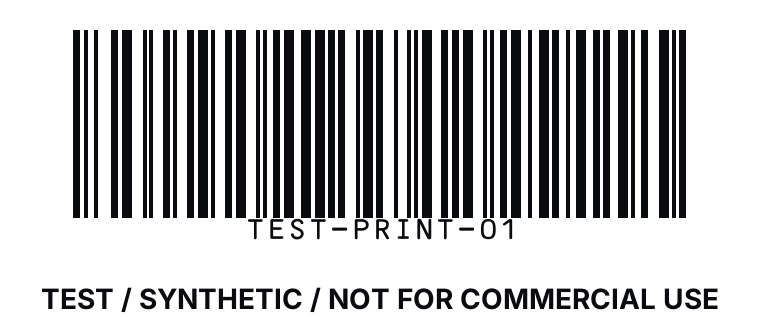
SVG describes two-dimensional graphics with XML-based shapes and attributes. A barcode renderer can represent bars or modules as rectangles that remain geometrically defined when the document is resized. This is helpful when artwork moves into a vector-capable layout application.
Vector flexibility can also introduce risk. A designer may stretch width and height independently, crop the view box, recolor bars, add filters or place other artwork inside the quiet zone. A printer driver can still rasterize the page at an unsuitable resolution. SVG preserves geometry only if the complete workflow respects it.
Treat downloaded SVG as active document content in general-purpose systems. BarcodeOpsKit sanitizes its generated SVG before preview and export and rejects scripts, event handlers and external references at the renderer boundary.
What PNG fixes
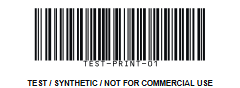
PNG stores a lossless raster image. It does not introduce compression artifacts like a lossy photographic format, but its modules are represented by a fixed number of pixels. If layout software resamples the image, sharp module edges can become blurred or uneven.
A raster export should be generated for the intended physical size and printer resolution. Do not enlarge a small preview screenshot. Avoid workflows that automatically “fit to box” without reporting the scale. If a PNG is placed at a different size, verify that module dimensions remain appropriate and edges stay crisp.
PNG metadata does not force every application to print at one physical size. The document, printer settings and driver still determine the result.
Worked example
A label team exports an SVG and places it into a vector document at an explicitly measured width. The team keeps aspect ratio locked and reserves the renderer’s quiet zone. Before production, it prints at actual size and verifies the symbol in the final layout.
Another system only accepts PNG uploads. The operator generates the PNG at the required target scale instead of converting a thumbnail. The upload is placed without resampling, and a test print is inspected on the real printer and stock.
TEST / SYNTHETIC / NOT FOR COMMERCIAL USE. Any previewed identifier is test data unless the operator supplies an authorized production value.
Print workflow checks
Record intended dimensions, printer resolution, stock, orientation and scaling setting. Disable “fit to page” when exact size matters. Keep human-readable text from intruding into the bars or quiet zone. Inspect the exported file after it passes through the layout application, because some software rewrites SVG or rasterizes it.
For label sheets, calibrate page margins and pitch with a non-barcode test pattern before consuming production stock. Check clipping across the whole sheet, not only the first label. For thermal media, account for darkness, speed, heat and material interaction.
Digital self-scan is a useful software regression: it confirms that the generated pixels still decode. It is not a physical grade and should never be reported as certification.
Common mistakes
- Using a screenshot as the production PNG.
- Stretching only one dimension of an SVG.
- Cropping the quiet zone to save space.
- Allowing office software to compress or resample the image.
- Printing with “fit” or “shrink” without recording the resulting scale.
- Assuming lossless PNG means unlimited scaling.
- Calling a digital self-scan a print-quality verification.
Limits and what is not checked
BarcodeOpsKit validates supported data, renders locally, sanitizes SVG and can self-scan the digital result. It does not measure printer output, module reflectance, contrast, edge quality, modulation, defects, substrate, curvature, lighting or verifier grades. It cannot certify the physical symbol or guarantee retailer acceptance.
File-format selection also does not prove the underlying identifier was issued or correctly associated with a product. Data governance and print verification remain separate.
Use the related tool
Use the barcode generator to create sanitized SVG or a locally rasterized PNG with a value-free filename. For multipage work, use the label sheet generator to set media, margins, pitch and preview overflow before exporting.
Sources and review
This guide was reviewed on 2026-07-13 against W3C SVG 2 and the PNG Specification Third Edition. Those specifications define file formats, not barcode print conformance. BarcodeOpsKit’s physical-quality limitations follow from that boundary.
Related guides
Read How to prepare a CSV for barcode labels before a batch layout and Sunrise 2027 and 2D barcodes for the broader physical deployment workflow.
Vector geometry and raster pixels scale differently
Vector SVG
Low-resolution PNG (240 × 88 pixels)
TEST / SYNTHETIC / NOT FOR COMMERCIAL USE
Original workflow aid
Export-format decision table
Choose the file the downstream application preserves most predictably, then verify the physical output at its final size.
Related local tool
Continue with the working tool
Generate a local SVG or PNG barcodeSource record
- Scalable Vector Graphics (SVG) 2, World Wide Web Consortium. Version or revision: Candidate Recommendation. Reviewed .
- Portable Network Graphics (PNG) Specification, Third Edition, World Wide Web Consortium. Version or revision: W3C Recommendation 2025-06-24. Reviewed .